Roundtable Workflows
Run structured multi-model discussions with selectable modes, participant model control, live session controls, and transcript export.
What Roundtable Is
Roundtable is KeyRing's structured multi-model discussion module. Instead of sending one prompt and waiting for one answer, you create a shared discussion topic, choose the participating providers and models, choose a conversation mode, and let KeyRing run a turn-based session.
License-gated module
Before You Start
- At least two providers with saved API keys
- Those providers enabled in the main workspace
- A license tier or feature flag that includes Roundtable
If fewer than two eligible participants are available, the session cannot start properly.
What You See in the Modal
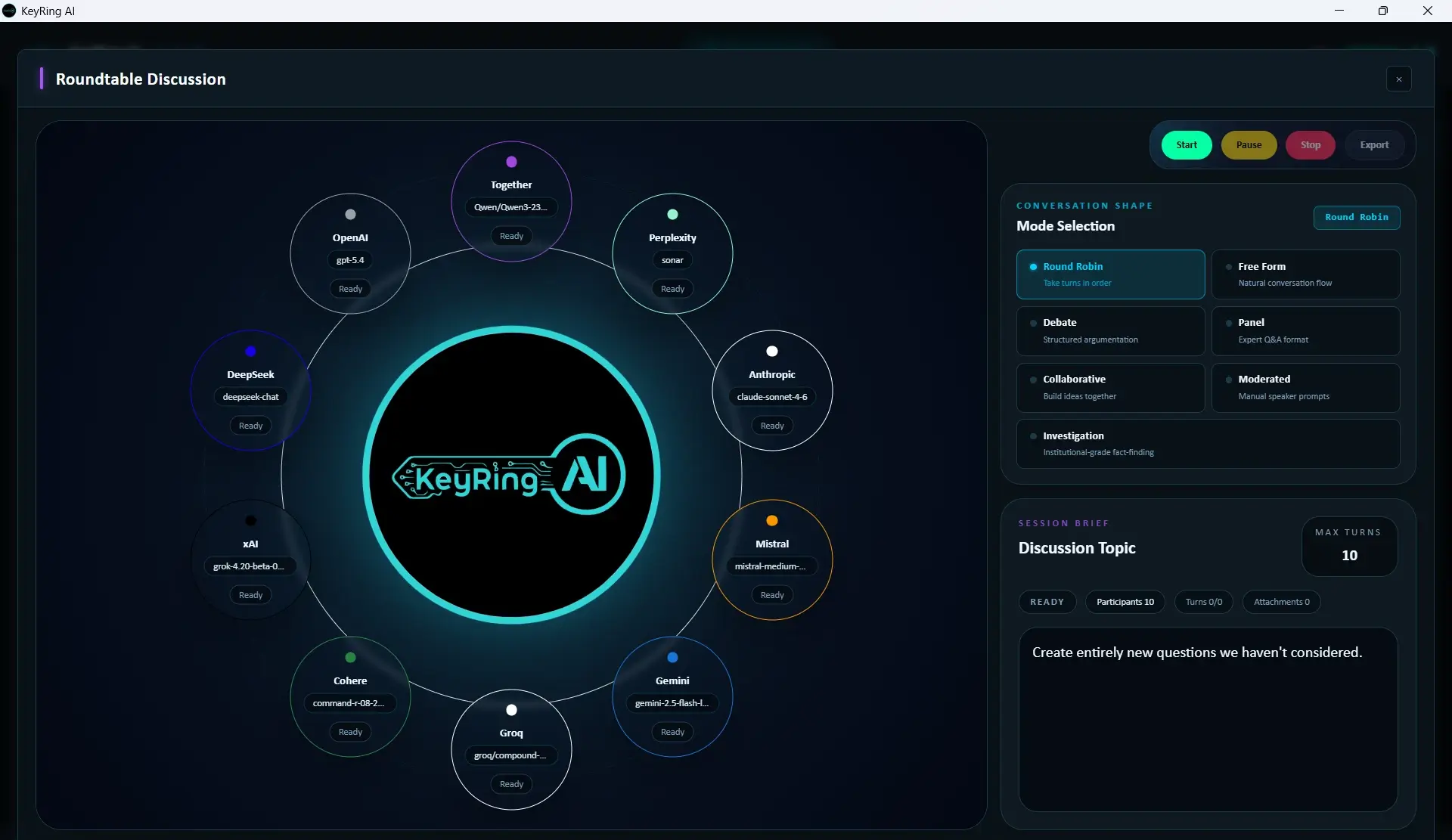
The Roundtable modal is organized into four main areas:
- Top control strip
- Mode selection
- Participant stage
- Session brief
On larger layouts, participants appear around the center logo in an orbit-style layout. The center logo is decorative; the participant nodes are the interactive elements.
The Seven Current Modes
Round Robin
Predictable equal-turn flow.
Free Form
Looser, more organic exchange.
Debate
Opposing positions and argument structure.
Panel
Multi-expert commentary around one question.
Collaborative
Build toward a shared answer.
Moderated
Manual control over who speaks next.
Investigation
Evidence-focused and inquiry-oriented session style.
These are real behavior changes
Choosing Participants and Models
Each participant corresponds to a provider already available in your desktop app.
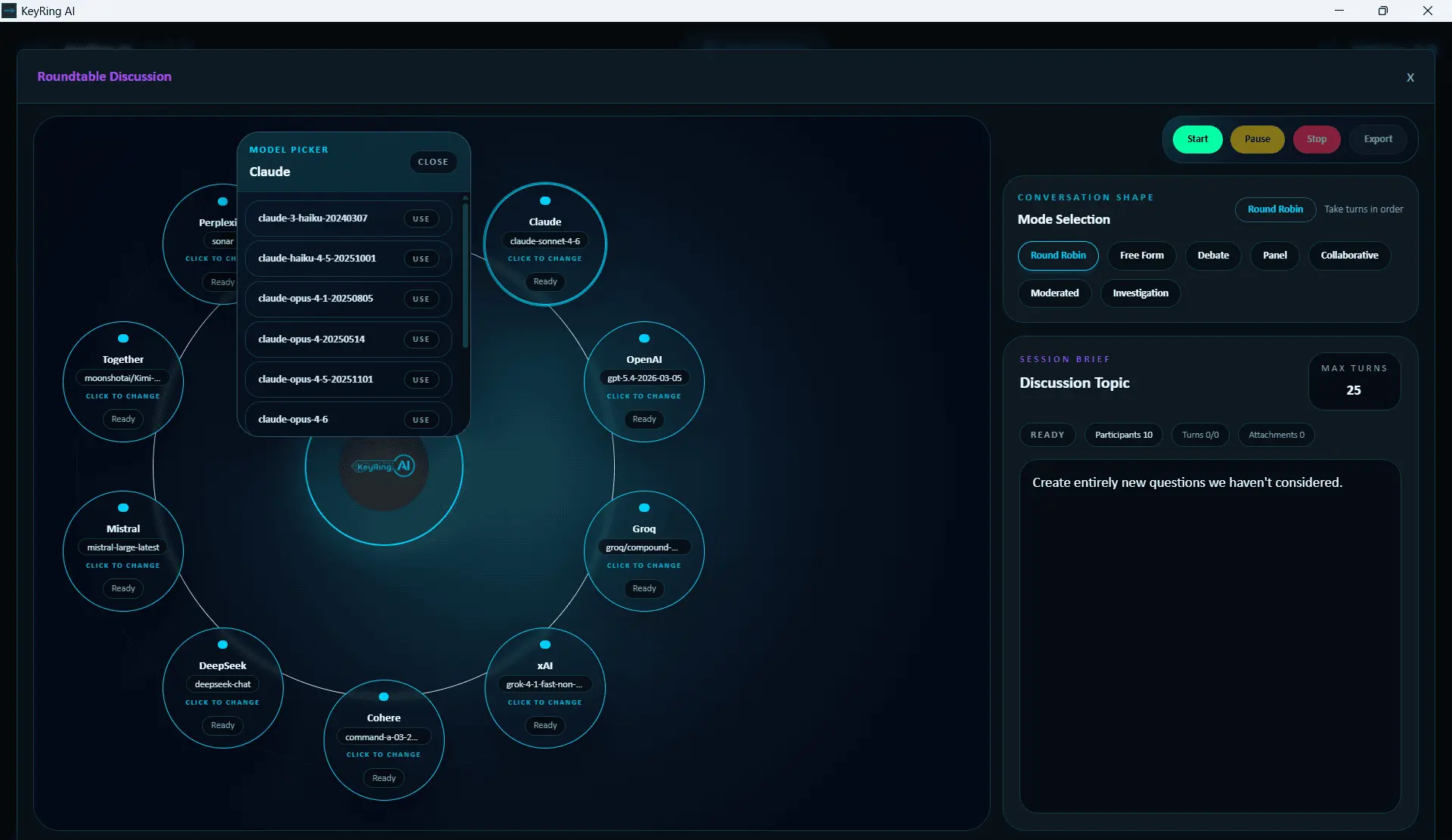
- On larger layouts, click a participant node to open that participant's model picker.
- On smaller layouts, the UI falls back to stacked provider cards with model dropdowns.
- Confirm both the provider set and the exact model selection before launch.
Start a Session
Open Roundtable
Launch the Roundtable modal from the main workspace.
Confirm at least two eligible participants
Roundtable will not start properly with fewer than two.
Set mode, Discussion Topic, and Max Turns
These are effectively launch settings in the current build.
Choose each participant model
Set them deliberately before launch.
Click Start
The session begins and the modal closes.
Where Output Appears
Roundtable output is routed into the main Chatroom transcript. It is not duplicated as a separate conversation inside every provider tab.
Current reading flow
Runtime Controls
- Start begins the session using the current settings.
- Pause freezes an active session.
- Resume continues a paused session.
- Stop ends the active session.
- Export exports the Roundtable transcript.
The backend preserves transcript state when a session ends early, so Stop does not mean the work is discarded.
Moderated Mode
Moderated mode exposes a Moderator Deck in the session brief area. Each participant row shows remaining turns and a per-participant action button such as Prompt or Done once that participant has exhausted its available turns.
This is the current UI path for manually steering who speaks next.
Attachments With Roundtable
Roundtable uses the same attachment system as the rest of the app. If you staged attachments before opening the modal, the session brief can show attachment count and warning summaries.
If the models need shared document context, prepare that context first in Attachments and then launch the session.
Important Current Limitations
- Topic, mode, and Max Turns are launch settings and are not intended to change mid-session.
- The backend supports more intervention capability than the current modal exposes.
- There is currently no free-text interjection box inside the modal.
- The reading surface for results is Chatroom, not a dedicated transcript pane inside the modal.
Recommended Workflow
- Enable the providers you want in the main workspace first.
- Stage any attachments before opening Roundtable.
- Choose the mode that matches the job.
- Set each participant's model deliberately.
- Write a precise Discussion Topic.
- Keep Max Turns realistic so the session stays focused.
- Start the session and follow the output in Chatroom.
- Use Export when the result is worth saving.
Troubleshooting
Common issues
- Roundtable will not start: Check eligible provider count, saved keys, and license access.
- Modal disappeared after starting: That is current behavior; the session continues in the main workspace.
- Want to manually steer the discussion: Use Moderated mode.