Model Config
Use the Model Config module to inspect defaults, apply presets, edit per-model overrides, and save advanced runtime settings.
What Model Config Does
Model Config is KeyRing's advanced per-model override editor. It lets you select a provider and model, load recommended defaults, layer on overrides, preview the merged effective configuration, and save those overrides for future requests.
Power-user module
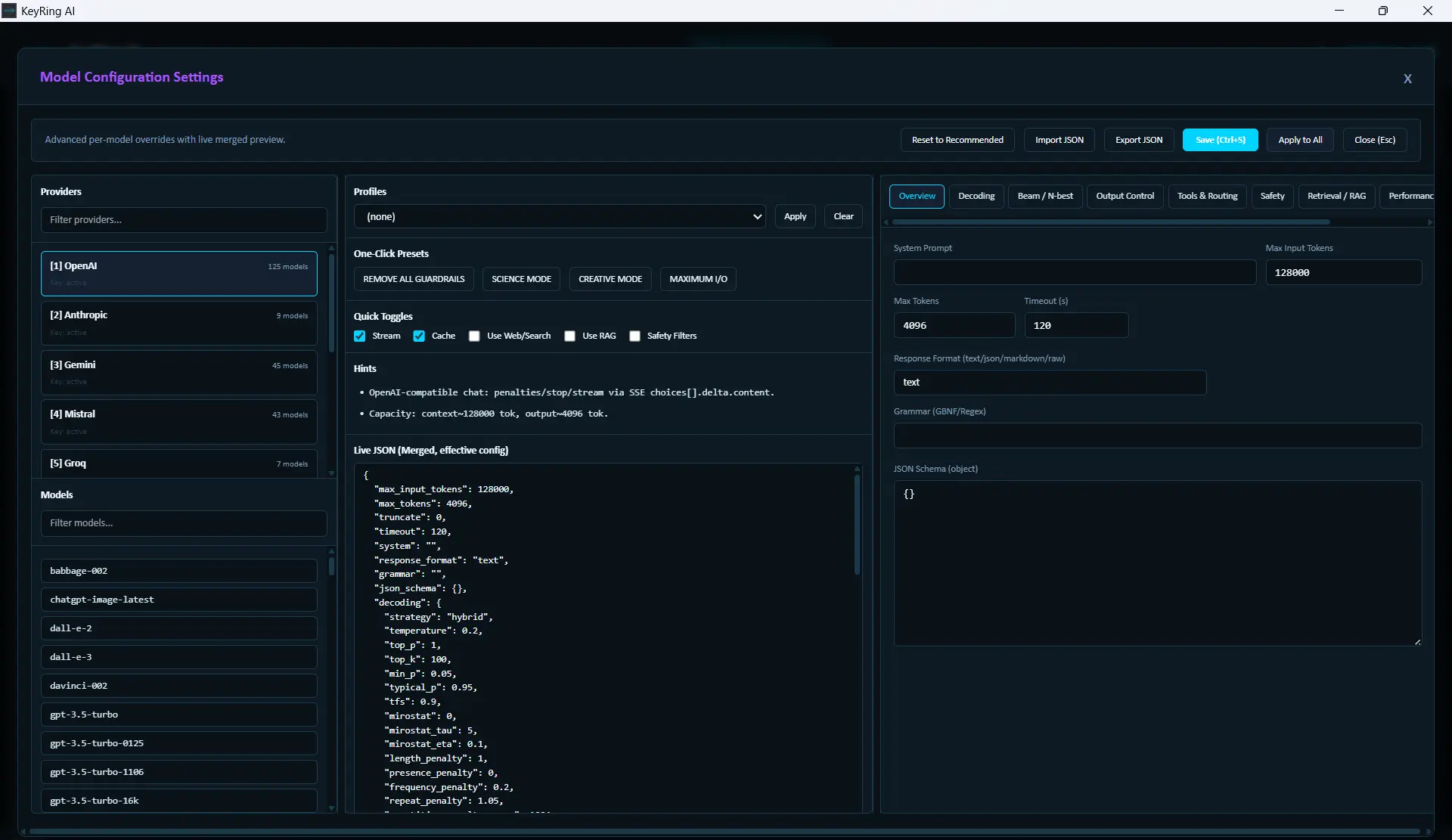
Layout
The current layout is a three-pane workspace with draggable dividers. Pane widths are remembered locally by the app.
Left pane
Provider filter, provider list, model filter, and model list.
Center pane
Profiles, one-click presets, quick toggles, hints, and Live JSON.
Right pane
The detailed tabbed editor for decoding, safety, retrieval, performance, and transport.
Top Action Bar
- Reset to Recommended
- Import JSON
- Export JSON
- Save Changes
- Apply to All
- Close (Esc)
Keyboard shortcuts currently include Ctrl+S, Cmd+S, Ctrl+Enter, and Cmd+Enter for saving the current override.
Select a Provider and Model First
Choose a provider in the left pane
Select the provider you want to tune.
Choose a model from that provider
Select the exact model, not just the provider family.
Let the editor load defaults and saved overrides
The editor becomes useful only after both the provider and model are selected.
Profiles, Presets, and Quick Toggles
The center pane gives you fast-start tools before you move into the detailed tab set.
Profiles
Profiles are backend-fed reusable starting points. They may vary by build and are intended as a baseline, not always a final configuration.
Built-in one-click presets
- SCIENCE MODE pushes the config toward lower-temperature, more controlled output.
- CREATIVE MODE increases generative freedom and more expressive decoding.
- MAXIMUM I/O raises input/output ceilings and extends timeout aggressively.
Quick Toggles
- Stream
- Cache
- Use Web/Search
- Use RAG
- Safety Filters
The Detailed Tabs
The right pane exposes the detailed override controls. Each tab groups a different class of model behavior.
Overview: system prompt, input/output token caps, timeout, response format, grammar, and JSON schema.
Decoding: strategy, temperature, top-p, top-k, min-p, typical-p, TFS, Mirostat, penalties, and temperature annealing.
Beam / N-best: beams, early stopping, best-of, n, and diversity penalty.
Output Control: stop sequences and max-sentence limits.
Tools & Routing: tool choice, parallel tool calls, tools JSON, and routing heuristics.
Safety: safety enablement, prompt injection blocking, self-reflection leak control, and shell-command disallow rules.
Retrieval / RAG: web/search toggle, RAG toggle, top-k values, reranking, relevance thresholds, and citations.
Performance: stream, cache, speculative decoding, batching, truncation, and prefill cache.
Logging / Transport: logprobs, seed, logit bias, extra headers, and metadata.
Hints and Live JSON
The center pane is one of the most useful parts of the module because it helps you see the effective configuration rather than just the form fields.
- Hints shows provider-aware notes and practical warnings.
- Live JSON (Merged, effective config) shows the merged output after KeyRing combines backend defaults, saved override, and current unsaved edits.
Save, Reset, Import, Export, and Apply to All
Save Changes stores the override for the selected provider/model pair only.Apply to All sends the current override payload across all models through the backend bulk-apply path.
Use Apply to All carefully
Recommended Workflow
- Select the provider and exact model first.
- Review the current defaults before changing anything.
- Apply a profile or preset only if it matches your goal.
- Use the detailed tabs for precise adjustments.
- Watch the Live JSON panel while you work.
- Save to the single provider/model first.
- Only use Apply to All when you are certain the change should be global.
Troubleshooting
Common issues
- The editor looks empty: Make sure both a provider and a model are selected.
- JSON behavior feels forced: When a JSON schema is present, JSON-oriented guardrails are expected.
- A provider ignores one of your settings: Provider support still varies; use the Hints panel and real request testing as the final source of truth.