History
Search, filter, inspect, reload, copy, export, and delete saved conversations from the History module.
What History Does
History is KeyRing's local archive of saved conversations. It lets you search, sort, filter, inspect, reload, copy, export, and delete prior runs without digging through the live workspace.
Layout
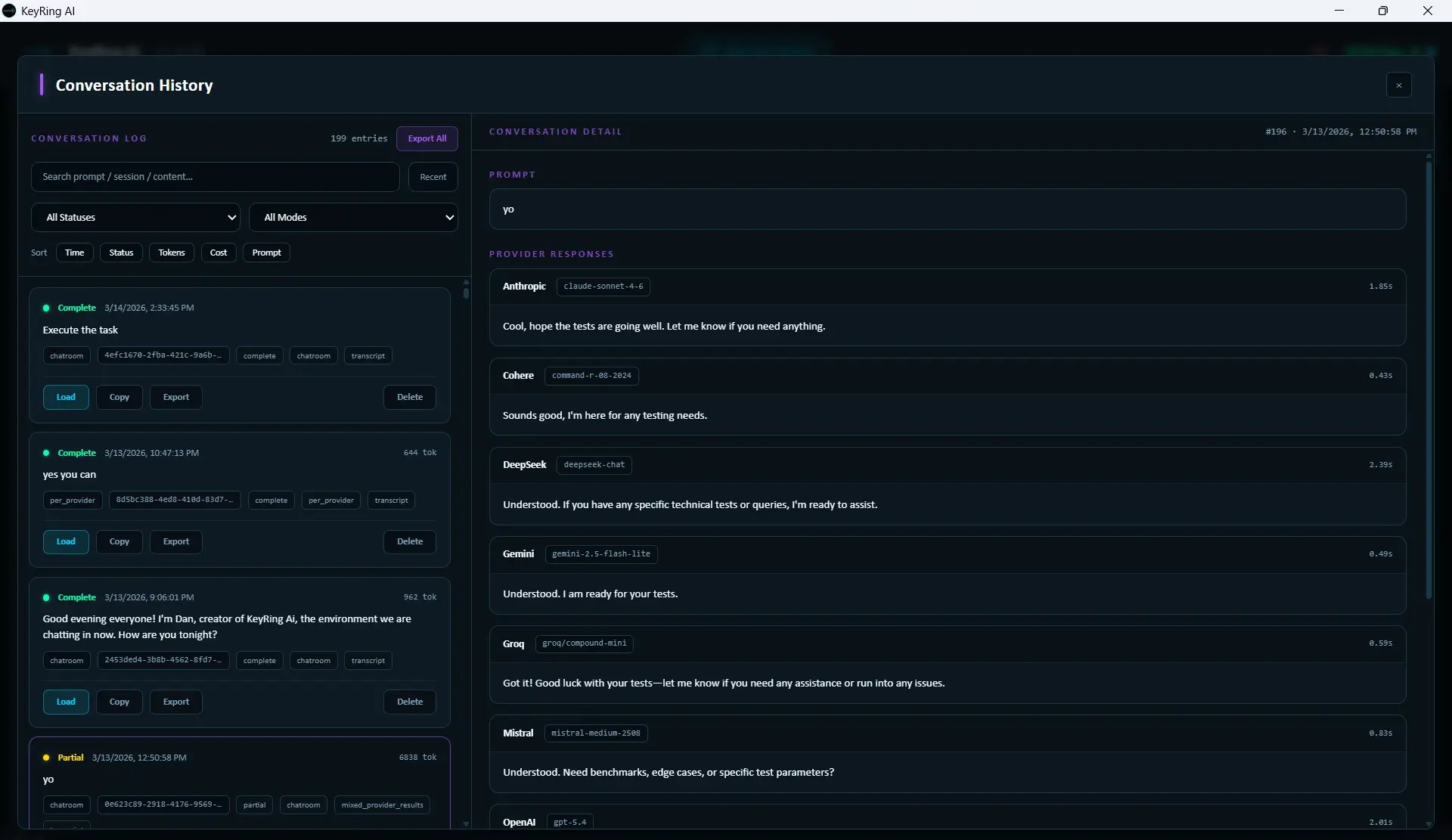
The current layout has two main areas: the history list and controls on the left, and the selected conversation detail pane on the right.
- Search box with placeholder: Search prompt/session/content...
- Recent button
- Export All
- Sort buttons
- Status and mode filters
Searching, Sorting, and Filtering
Search is slightly delayed by design. The app waits briefly before reloading the list so the search feels smoother while typing.
- Sort buttons: Time, Status, Tokens, Cost, Prompt
- Status filters: All, Complete, Partial, Error
- Mode filters: All, Chatroom, Per-provider
Clicking the same sort again flips the sort direction.
The Entry List
Each history entry can show timestamp, status indicator, token information, prompt preview, session ID, and saved status tags. Status is shown visually so you can scan for Complete, Partial, and Error rows quickly.
Per-entry Actions
- Load loads the conversation back into the active workspace.
- Copy builds a readable clipboard bundle containing prompt and response sections.
- Export exports the single conversation as markdown.
- Delete deletes the entry from local history after confirmation.
Load behavior
The Detail Pane
Clicking an entry loads the saved detail in the right pane. That detail can include the prompt, consensus text, provider responses, and response-status context without forcing you to restore the conversation into the live workspace first.
Export All
Export All exports the currently listed entries as one markdown file. It follows the current filtered list state rather than blindly exporting the entire database.
Recommended Workflow
Search or filter the archive
Narrow the left-side list to a manageable set.
Inspect the detail pane
Click an entry to review it on the right before loading it back into the live workspace.
Choose the action you need
Use Load to resume, Copy or Export to keep a record, or Delete for cleanup.
Troubleshooting
Common issues
- Cannot find a conversation you know you ran: Check search, status filter, mode filter, and sort order.
- Loaded conversation did not restore an active background runtime: History restores saved content, not a live background session.
- Copied conversation mentions a missing provider response: The saved run had a missing provider section and the copy flow intentionally surfaces that.