Chatroom & Multi-Model Querying
Use Chatroom to send one prompt to multiple active providers, compare outputs in one shared transcript, and control the run with request options.
What Chatroom Is
Chatroom is KeyRing's unified response lane. When the Chatroom request option is enabled, your prompt is submitted once and the returning provider outputs are written into one shared transcript instead of being split into fully separate provider conversations.
Important current behavior
Before You Use It
- At least one provider must be configured in API Settings.
- At least one provider must be enabled in the left-side Providers controls.
- The Chatroom toggle must be enabled in Request Options.
Chatroom is most useful when two or more providers are active, because that is when the shared transcript becomes a real comparison surface.
Turn Chatroom On
Enable the providers you want to query
Use the Providers control area in the main workspace.
Turn on Chatroom in Request Options
This changes the response routing for the next request.
Type your prompt in the prompt editor
Then submit normally.
When you submit with Chatroom enabled, KeyRing switches the active response tab to Chatroom automatically.
What You See in the Chatroom Panel
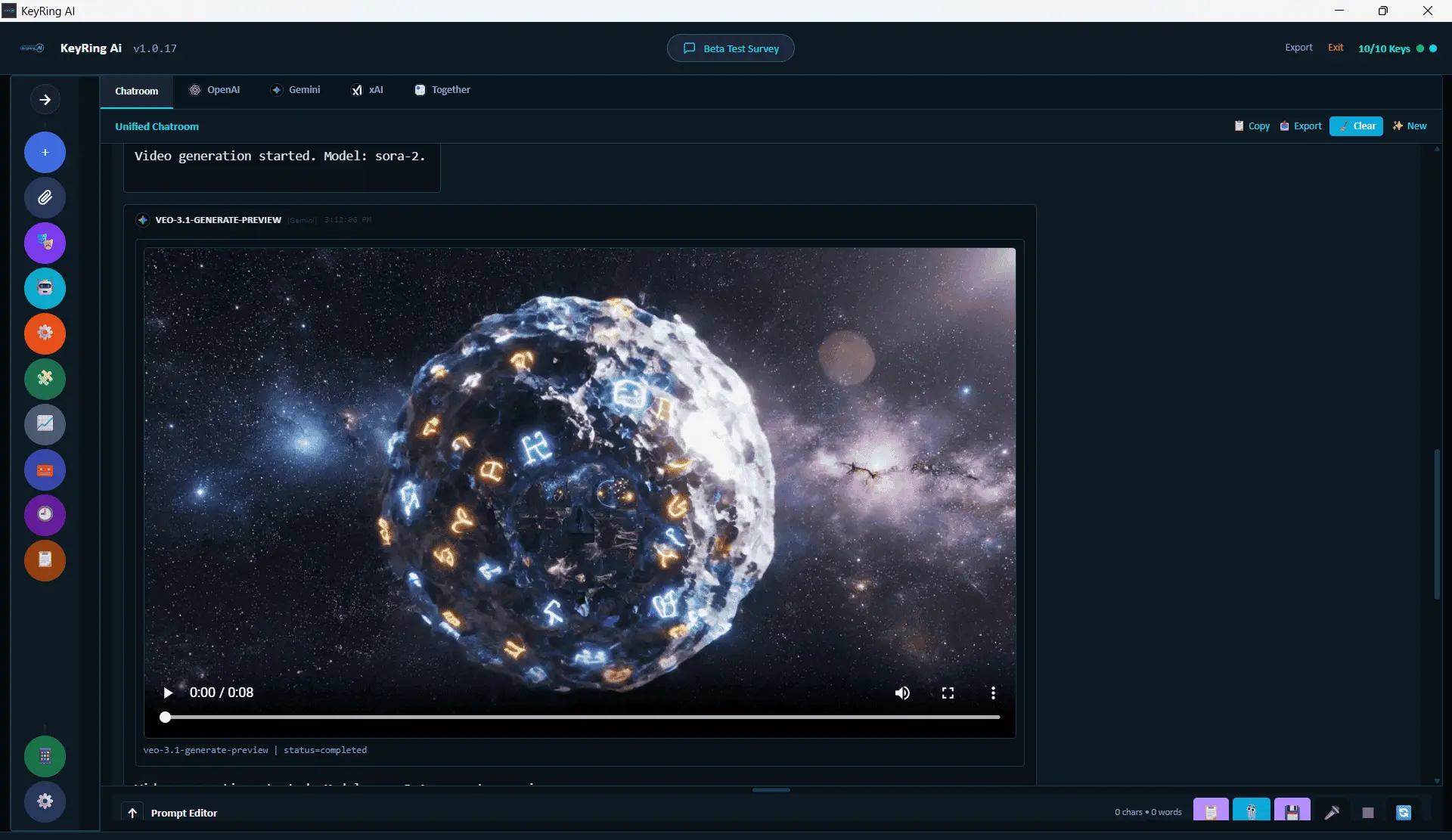
The Chatroom response panel opens with a Unified Chatroom header and four top-right actions:
- Copy
- Export
- Clear
- New
Copy copies the full visible transcript. Export exports the transcript as markdown. Clear clears the Chatroom transcript context, while New is the true fresh-start path that resets the broader workspace state as well.
What Happens When You Send a Prompt
- Your prompt is added to the shared Chatroom transcript.
- KeyRing dispatches the request to every active provider in the request set.
- Provider responses stream or arrive back into the Chatroom feed.
- If Auto-generate consensus is enabled and enough providers succeed, a separate Consensus tab can appear beside Chatroom.
Prompt Editor and Toolbar
The prompt editor under the response area is the main input surface for Chatroom.
- Enter sends the prompt
- Ctrl+Enter also sends the prompt
- Shift+Enter inserts a new line
The toolbar above the prompt field includes actions for collapsing or expanding the prompt area, pasting text, opening attachments, saving prompt text to a file, voice prompt capture when available, stopping active streams, and regenerating the currently selected response tab.
System Context
Directly above the prompt field is an expandable block labeled System Context (Optional). Use this for one shared instruction that should apply to the whole request, such as formatting rules, tone rules, output constraints, or universal do-not-do instructions.
Model @mentions
If the Model @mention request option is enabled, typing @ in the prompt editor opens a model mention picker.
- The picker only shows providers that are active.
- Providers without a usable configured key are excluded.
- The picker is selection-based, not free-typed.
Attachments With Chatroom
Chatroom works with plain text prompts, attachments, or both together. The prompt footer shows a drag-and-drop target, scope indicator, attachment count, and warning count when the last attachment ingest reported issues.
Request Options That Matter Most
- Chatroom routes results into the unified feed.
- Stream responses shows output progressively.
- Auto-generate consensus adds the Consensus tab when enough providers succeed.
- Model @mention enables the @ picker.
- Tool Calling lets supported providers use tools during the run.
- Deliberation round adds an extra refinement pass.
- Agents exposes the Agents response tab when licensed.
Recommended Workflow
- Enable two or more providers.
- Turn on Chatroom.
- Add shared System Context if needed.
- Stage any attachments.
- Send the prompt.
- Read the shared transcript as responses stream in.
- Use Copy or Export when the result is worth keeping.
- Use Clear for another prompt in the same workspace, or New for a true fresh start.
Troubleshooting
Common issues
- Sent a prompt but results did not land in Chatroom: Make sure Chatroom was enabled in Request Options before you submitted.
- Typed @ and nothing happened: Enable Model @mention first and confirm at least one active configured provider exists.
- Cannot send the prompt: Submit is blocked when both prompt text and attachments are empty.