Provider Manager
Maintain provider registry entries, sync model inventories, map routing targets, and adjust provider visual identity in Provider Manager.
What Provider Manager Does
Provider Manager is KeyRing's registry-facing provider maintenance module. It is designed for inspecting existing provider entries, syncing model inventories, mapping provider modes to concrete models, and adjusting provider tab colors.
Control-plane module
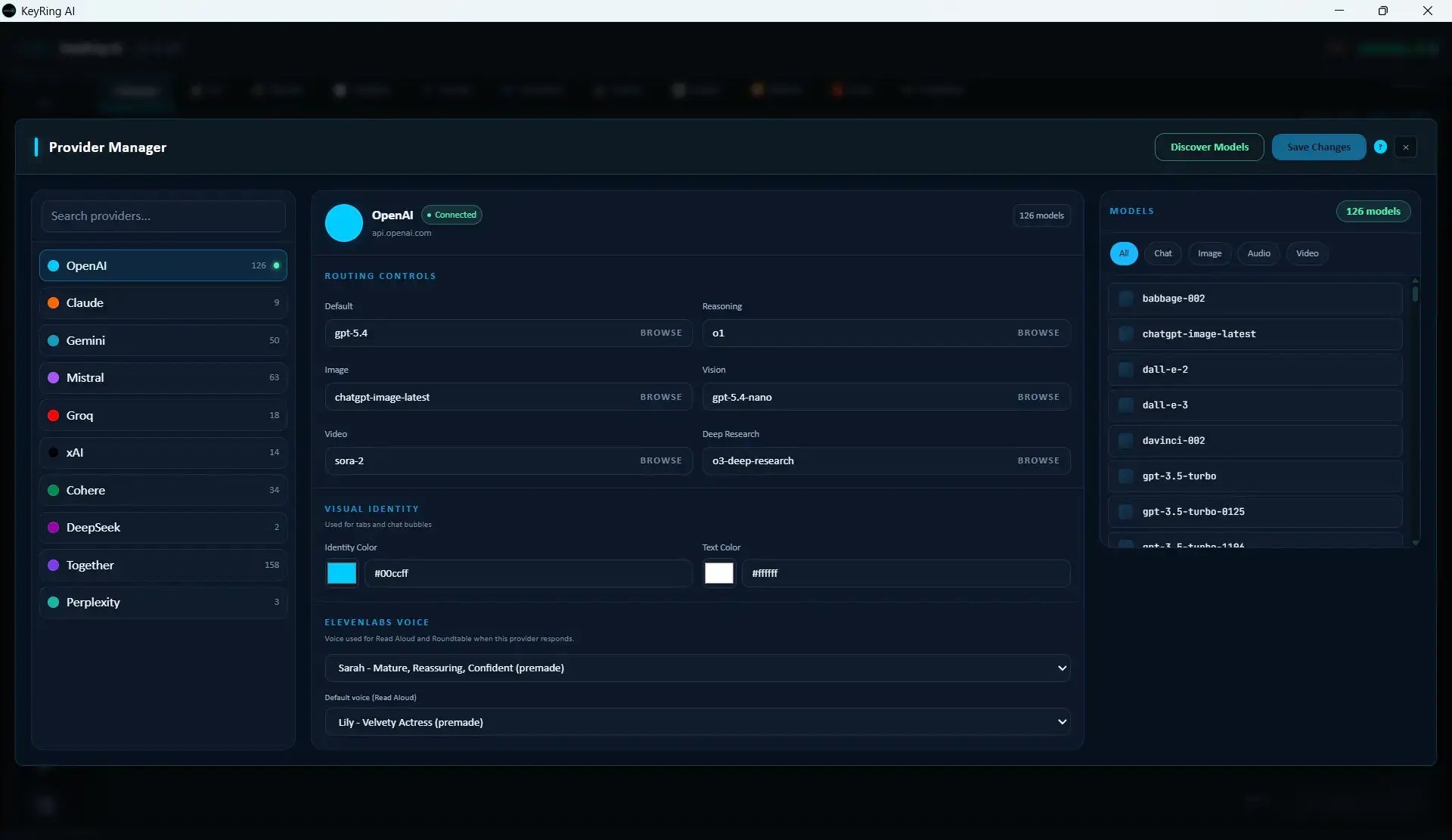
Three-Column Layout
Left column
Provider list, provider search input, and model-count summary per provider.
Center column
Selected provider header, Sync, Save, Routing Controls, and Visual Identity.
Right column
Model count badge, model search, capability filters, and model preview list.
Selecting a Provider
To work on a provider, click its row in the left column and let the selected-provider header in the center column update.
Current parity note
Syncing Models
Select the provider
Choose the provider you want to maintain.
Click Sync
The module calls the provider discovery path and refreshes the model inventory into the draft.
Review the model list
Check the model count and preview list for the updated inventory.
Click Save
The sync result is not durable until you save.
Sync is disabled when no provider is selected. Discovery results are alphabetized into the draft before they are persisted.
Routing Controls
Routing Controls map KeyRing's provider-mode buttons to concrete models for the selected provider.
- Default
- Reasoning
- Image
- Vision
- Video
Each routing target must point to a model that exists in the provider's inventory.
Visual Identity
The Visual Identity section controls how the provider appears elsewhere in the desktop UI.
- Tab Color
- Text Color
- Color picker input
- Hex field input
The Models Panel
The right-side panel is a browsing surface for the provider's current inventory. It includes a model search field and filter pills for All, Chat,Image, Audio, and Video.
Preview limit
Important Current Scope Limitations
- You are editing existing provider entries.
- The visible three-column UI does not expose a normal New Provider flow.
- Provider deletion is not exposed as a visible action in this layout.
- The module should be documented as a maintenance surface, not a full provider-creation console.
Read-only Fallback Mode
If the provider registry control plane is unavailable, Provider Manager can fall back to a read-only mode built from older provider data.
In that state, provider data remains visible, but lifecycle changes are not applied.
Recommended Workflow
- Select the provider you want to maintain.
- Sync the model list.
- Review the discovered models in the right panel.
- Set or update the Default, Reasoning, Image, Vision, and Video mappings.
- Adjust colors only if needed.
- Click Save.
Troubleshooting
Common issues
- Provider search box is not filtering: That matches the current build.
- Synced models but the change did not stick: You still need to click Save.
- Cannot find every model in the right panel: The preview list only renders the first 50 filtered models.