Attachments
Stage files globally or per provider, choose the ingestion mode, and review attachment diagnostics before sending prompts.
What the Attachments Module Does
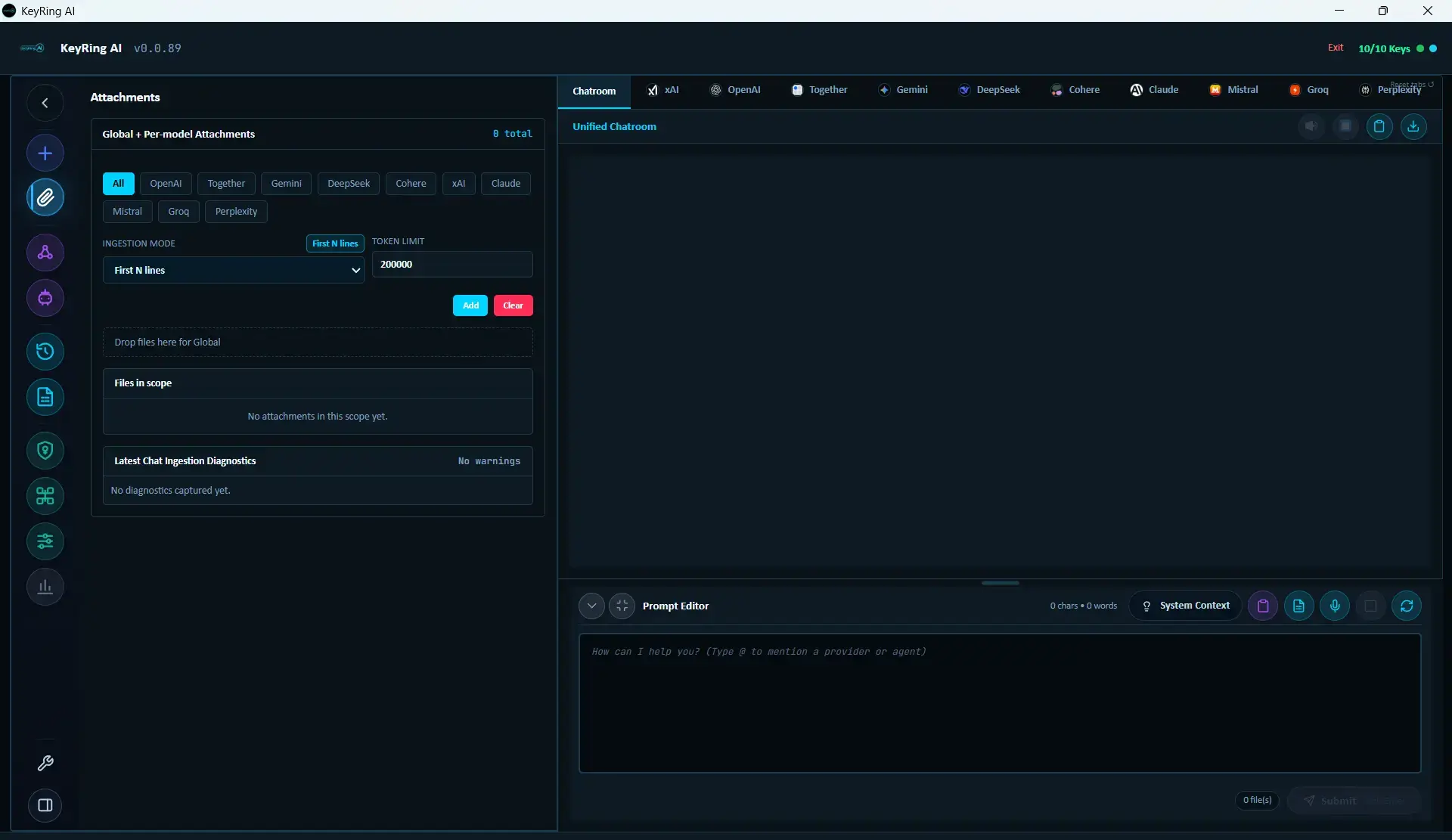
Attachments is KeyRing's file staging module. It lets you upload files once, decide who should receive them, choose how aggressively KeyRing should ingest them, and review what happened during the last chat ingestion pass.
Best used for
How to Open It
Use the Attachments module
Open the dedicated Attachments module from the app's module area.
Or open it from the prompt toolbar
Use the attachments button in the prompt toolbar when you are already composing a prompt.
The toolbar route is faster when you are already in Chatroom. The full module route is better when you want to manage files more deliberately.
Scope Tabs
The module is organized around scopes. At the top, KeyRing shows a tab row containing Global and one tab for each provider currently known to the app.
Pick the right scope before uploading
Use Global when every targeted provider should receive the same attachment context.
Use provider-specific scope when needed
Choose a provider tab when only one provider should receive that file.
One of the strongest features in the module
Ingestion Controls
Every scope exposes the same top control row:
- Ingestion mode
- Token limit
- Add
- Clear
Current parity note
Add Files
Choose scope and ingestion settings
Confirm you are in the right tab before adding anything.
Click Add or drag files into the drop zone
You can add one or more files to the currently selected scope.
Review the files table
The files appear immediately in the table for that scope.
If you switch scope tabs, you are looking at a different attachment bucket, not the same files filtered another way.
The Four Ingestion Modes
Raw (trim): extracts the text content and includes it in prompt context, trimming it to the configured limit if needed.
First N lines: takes the beginning of the extracted file text, up to the built-in line slice, and still respects the configured limit.
Metadata only: sends attachment headers and file metadata, but not the full body content.
Filename only: sends only the attachment header and filename reference.
Files Table
The files table for the active scope currently exposes these columns:
- Filename
- Scope
- Mode
- Size
- Created
- Actions
Each row currently exposes Download and Remove. The scope-level Clear button removes all files in the current scope only.
How Attachments Reach the Prompt
You do not manually paste attachment content into the prompt editor. Once a file is staged, KeyRing injects the attachment material during request construction.
- Global attachments reach every targeted provider.
- Provider-specific attachments reach only the matching provider.
- You can submit prompt text only, attachments only, or both together.
Diagnostics
At the bottom of the module, KeyRing shows Latest Chat Ingestion Diagnostics. This is the authoritative panel for understanding what happened the last time attachments were processed for a chat request.
- Whether a file ingested cleanly
- Whether content was trimmed
- Whether the mode limited the content intentionally
- Whether a file could not be fully parsed
- Any per-file reason codes or warnings
Recommended Workflows
Shared research pack: use Global scope and Raw (trim) or First N lines, then run the same prompt across multiple providers.
Controlled provider comparison: put one source in Global and extra files in one or more provider-specific tabs, then compare how each provider behaves with its scoped evidence.
Low-token contexting: use Metadata only or Filename only when you want file awareness without paying for full ingestion.
Troubleshooting
Common issues
- File is staged but the model behaved as if it never saw it: Check the scope, the provider selection, the ingestion mode, and the diagnostics panel.
- Prompt footer shows ingestion warnings: Open Attachments and review Latest Chat Ingestion Diagnostics.
- Changed scope and the file disappeared: You switched to a different scope tab; return to the original scope to see that file list.