API Settings
Manage license state, provider API keys, default models, provider activation, and desktop updates from the API Settings module.
What API Settings Controls
API Settings is KeyRing's credential, license, model-selection, and update control center. This is the module that determines which providers have saved API keys, which default model each provider uses, whether your license is installed and validated, and whether a desktop update is ready to install.
Draft-based save model
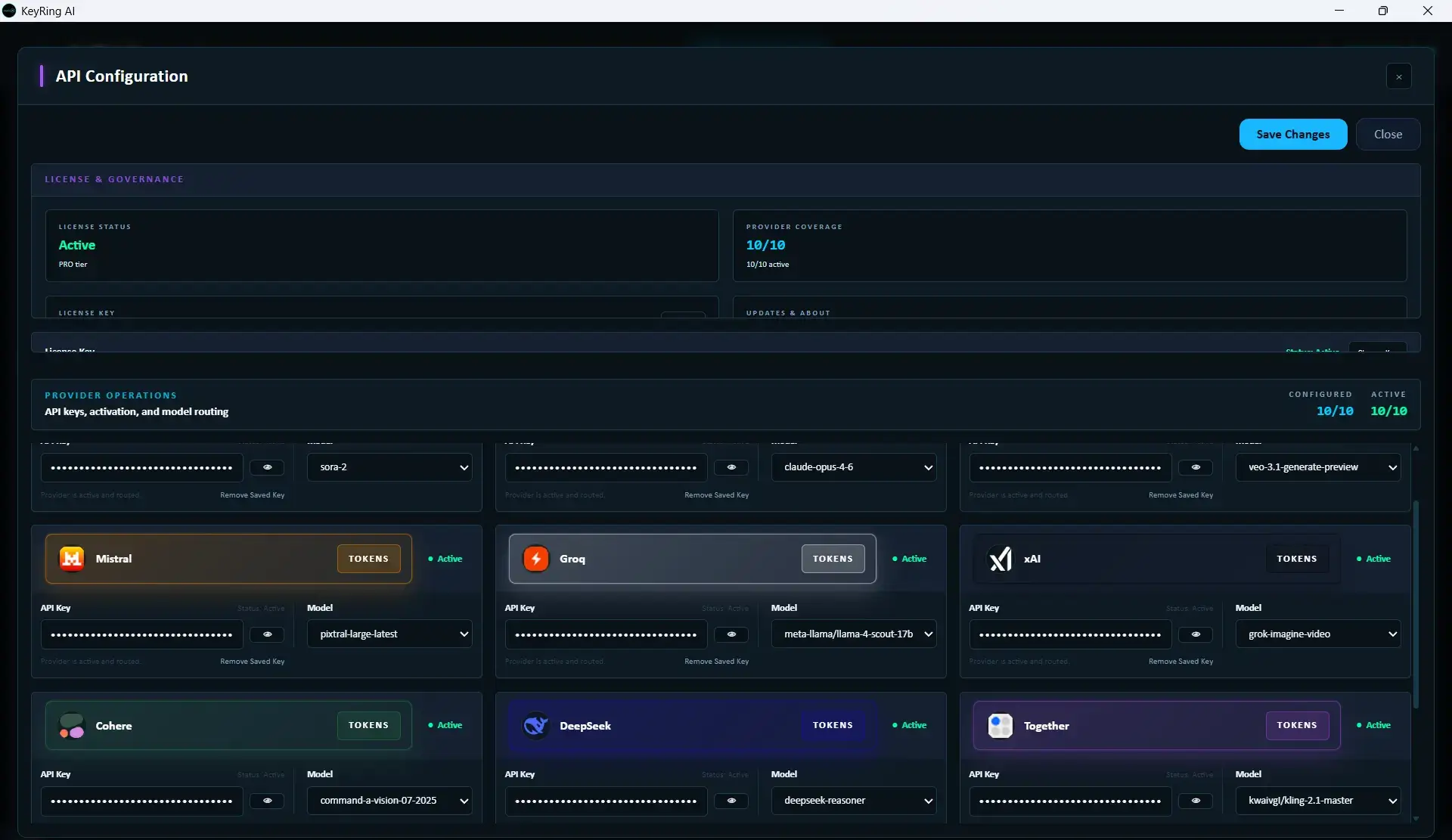
How to Open It
Open the desktop workspace
Launch the main KeyRing AI desktop app.
Click API Settings
Use the API Settings button in the module area.
Review the API Configuration modal
The modal opens with license controls, update controls, and the provider card grid.
What You See When It Opens
- Top action bar with Save Changes and Close
- Basic-plan notice when your license tier restricts providers
- License Key section for install, validation, and removal
- Updates & About section for checking and installing desktop updates
- One provider card per supported provider
When you have pending edits, the modal title changes to indicate unsaved changes.
License Key Section
The License Key panel is the top-most settings block. It includes the license input, validation controls, show/hide behavior, and staged removal controls.
Expand License Key if needed
Open the panel if it is collapsed.
Paste the license key
Enter the KeyRing license key into the input field.
Click Validate
Validation checks the key, but does not persist it yet.
Review the validation result
Check the status, tier, machine binding, dates, and entitlement state if shown.
Click Save Changes
The license key is only installed when you save the draft.
Validate is not save
Provider Cards
Below the update section, KeyRing shows one card per provider. Each card is the place where you add the provider key, choose the default model, and control whether the provider is available to the rest of the app.
- Provider name and dashboard link
- Active toggle
- API Key field
- Show / hide key button
- Provider status indicator
- Remove Saved Key or Undo Remove
- Model dropdown
If a provider exposes a dashboard URL, the card title area is rendered as Add tokens for Provider ->, which opens the provider's external dashboard.
Supported Providers
KeyRing AI supports 11 providers in the desktop runtime. Each card below links to the provider's official portal where you create your account, set up billing, and generate an API key.
 OpenAI
 Claude (Anthropic)
 Gemini (Google)
 Mistral
 Groq
Groq xAI (Grok)
 Cohere
 DeepSeek
 Together
 Perplexity
 ElevenLabs
Configure a Provider
If you are new to KeyRing AI, start with API Keys Made Easy for a beginner-friendly walkthrough. Otherwise, the setup flow is:
Open API Settings
This is the module where provider cards, license status, key inputs, selected models, and save actions live.
Use the provider card link
Each provider card includes a link that opens that provider's token, billing, or key-management page.
Create the account, billing setup, and API key
Some providers let you create a key before billing is active. Others require billing before the API becomes useful.
Paste the key and save
After you save, the desktop runtime has the provider credential it needs for later calls from your machine.
Choose a model and activate the provider
Saving a key is only part of readiness. The selected model must exist for that provider and your current account access.
Provider status is shown on the card as Missing, Configured, or Active based on whether a key exists and whether the provider is enabled.
Provider Portal Links
Each card below opens the provider's official portal. Create what you need there, then return to KeyRing AI and save the resulting API key on the matching provider card.
OpenAI
DashboardOpen the official provider portal
Sign in or create the account for OpenAI, then review the provider's API and billing section.
Create a new API key
Generate a fresh key for desktop use, copy it securely, and avoid reusing screenshots or shared notes to store it.
Return to KeyRing and save it on the matching provider card
After saving, confirm the selected model is valid and that the provider is actually active in your current workspace.
Claude (Anthropic)
DashboardOpen the official provider portal
Sign in or create the account for Claude (Anthropic), then review the provider's API and billing section.
Create a new API key
Generate a fresh key for desktop use, copy it securely, and avoid reusing screenshots or shared notes to store it.
Return to KeyRing and save it on the matching provider card
After saving, confirm the selected model is valid and that the provider is actually active in your current workspace.
Gemini (Google)
DashboardOpen the official provider portal
Sign in or create the account for Gemini (Google), then review the provider's API and billing section.
Create a new API key
Generate a fresh key for desktop use, copy it securely, and avoid reusing screenshots or shared notes to store it.
Return to KeyRing and save it on the matching provider card
After saving, confirm the selected model is valid and that the provider is actually active in your current workspace.
Mistral
DashboardOpen the official provider portal
Sign in or create the account for Mistral, then review the provider's API and billing section.
Create a new API key
Generate a fresh key for desktop use, copy it securely, and avoid reusing screenshots or shared notes to store it.
Return to KeyRing and save it on the matching provider card
After saving, confirm the selected model is valid and that the provider is actually active in your current workspace.
Groq
DashboardOpen the official provider portal
Sign in or create the account for Groq, then review the provider's API and billing section.
Create a new API key
Generate a fresh key for desktop use, copy it securely, and avoid reusing screenshots or shared notes to store it.
Return to KeyRing and save it on the matching provider card
After saving, confirm the selected model is valid and that the provider is actually active in your current workspace.
xAI (Grok)
DashboardOpen the official provider portal
Sign in or create the account for xAI (Grok), then review the provider's API and billing section.
Create a new API key
Generate a fresh key for desktop use, copy it securely, and avoid reusing screenshots or shared notes to store it.
Return to KeyRing and save it on the matching provider card
After saving, confirm the selected model is valid and that the provider is actually active in your current workspace.
Cohere
DashboardOpen the official provider portal
Sign in or create the account for Cohere, then review the provider's API and billing section.
Create a new API key
Generate a fresh key for desktop use, copy it securely, and avoid reusing screenshots or shared notes to store it.
Return to KeyRing and save it on the matching provider card
After saving, confirm the selected model is valid and that the provider is actually active in your current workspace.
DeepSeek
DashboardOpen the official provider portal
Sign in or create the account for DeepSeek, then review the provider's API and billing section.
Create a new API key
Generate a fresh key for desktop use, copy it securely, and avoid reusing screenshots or shared notes to store it.
Return to KeyRing and save it on the matching provider card
After saving, confirm the selected model is valid and that the provider is actually active in your current workspace.
Together
DashboardOpen the official provider portal
Sign in or create the account for Together, then review the provider's API and billing section.
Create a new API key
Generate a fresh key for desktop use, copy it securely, and avoid reusing screenshots or shared notes to store it.
Return to KeyRing and save it on the matching provider card
After saving, confirm the selected model is valid and that the provider is actually active in your current workspace.
Perplexity
DashboardOpen the official provider portal
Sign in or create the account for Perplexity, then review the provider's API and billing section.
Create a new API key
Generate a fresh key for desktop use, copy it securely, and avoid reusing screenshots or shared notes to store it.
Return to KeyRing and save it on the matching provider card
After saving, confirm the selected model is valid and that the provider is actually active in your current workspace.
ElevenLabs
DashboardOpen the official provider portal
Sign in or create the account for ElevenLabs, then review the provider's API and billing section.
Create a new API key
Generate a fresh key for desktop use, copy it securely, and avoid reusing screenshots or shared notes to store it.
Return to KeyRing and save it on the matching provider card
After saving, confirm the selected model is valid and that the provider is actually active in your current workspace.
Local Security Model
Local-first runtime
Provider requests are sent from the desktop app using your own API credentials.
Per-provider control
Each provider keeps its own key, selected model, and active or inactive state.
No shared relay
KeyRing does not proxy your prompts through a central app server for normal provider usage.
Activation and Model Rules
- A provider cannot be meaningfully active without a usable key.
- Providers outside your current plan are blocked at activation time in the UI.
- Model selection is saved per provider.
- If the backend applies a model fallback instead of your exact selection, the save flow can return a model fallback warning.
Remove a Saved Key
Provider and license removals are staged. Clicking Remove Saved Key does not immediately delete the stored secret.
- The card switches into a pending-removal state.
- The action changes to Undo Remove.
- The actual deletion only happens after you click Save Changes.
Updates and About
API Settings also contains the desktop update controls. This is where you check for updates and install them once a package is ready.
- Check for Updates
- Install & Restart
- Retry Install when the previous install failed
The section can show states such as up to date, checking, downloading, ready, installing, blocked pending install, or failed. A progress bar appears during download or installation.
Recommended Setup Workflow
- Install or validate your license first.
- Add API keys for the providers you actually plan to use.
- Choose the correct model on each provider card.
- Turn on only the providers you want active in the app.
- Click Save Changes.
- Return to the main workspace and confirm the provider set looks correct.
Configured vs Active
There are two different ideas to keep straight:
- Configured provider: the provider card has a saved key and selected model.
- Active provider: the provider is currently enabled for the main workspace or active workflow.
Configured is not the same as active
Verify Provider Readiness
A provider is operational only when all of these are true:
1) A valid API key is saved in API Settings
2) The provider is permitted by your current license tier
3) A working model is selected for that provider
4) The provider is active in the desktop controls
5) The provider account itself has working API access and billing
Troubleshooting
Common provider problems
- 401 or auth error: Regenerate the key and save it again in API Settings.
- Provider appears unavailable: Confirm the provider is allowed by your plan and license.
- Selected model does not work: Your provider account may not have access to that specific model.
- Provider saves but still fails later: Check billing, credit balance, quota, or provider-side API status.
After provider setup is complete, continue with Chatroom & Multi-Model Querying or Roundtable Workflows.